
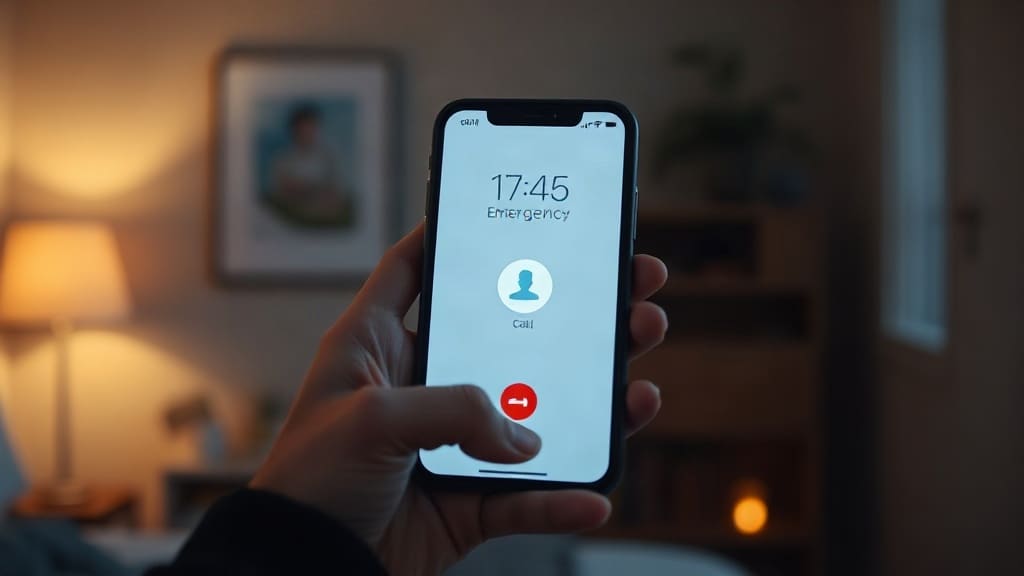
We carry our phones everywhere, but few of us realize that tucked inside is a powerful emergency kit designed to help in a crisis. Whether it is a natural disaster, a medical emergency, or a personal safety threat, your smartphone has built-in tools that can call for help, share your location, and even provide critical medical information to first responders. The best part? You do not need to download anything. These features are already there, waiting to be activated. Let's walk through what they are, how to set them up, and why they matter.
Why Your Phone's Emergency Features Matter
In an emergency, every second counts. When you are injured, disoriented, or unable to speak, your phone can become your voice. Features like Emergency SOS and Medical ID are designed to work even when you cannot. They can automatically dial local emergency services, send your exact location to trusted contacts, and display your medical conditions and allergies to responders. According to safety experts, having these set up in advance can significantly improve outcomes in critical situations.
But many people do not know these tools exist, or they have never taken the time to configure them. A few minutes of setup today could make a world of difference tomorrow.
Built-In Emergency Features on iPhone
Apple has integrated a comprehensive set of safety tools into iOS. Here are the key ones you should know:
Emergency SOS
On iPhone 8 and later, you can trigger Emergency SOS by pressing and holding the side button and one of the volume buttons until the Emergency SOS slider appears. If you continue holding, a countdown begins and an alert sounds. When the countdown ends, your phone automatically calls emergency services. On iPhone 7 and earlier, you rapidly press the side or top button five times.
You can also enable Call with Hold and Release or Call with 5 Button Presses in Settings, depending on your model. Once the call ends, your iPhone can send a text message with your location to your emergency contacts, unless you cancel.
Medical ID
Medical ID is a feature within the Health app that stores vital health information such as allergies, medical conditions, medications, blood type, and emergency contacts. First responders can access this information from the lock screen without unlocking your phone. To set it up, open the Health app, tap your profile picture, then Medical ID, and fill in your details. Make sure "Show When Locked" is enabled.
Find My and Location Sharing
In a crisis, sharing your location can be crucial. The Find My app allows you to share your location with family and friends. You can also use it to locate a missing device or person. In addition, when you use Emergency SOS, your location is automatically sent to your emergency contacts.
Crash Detection
On iPhone 14 and later, Crash Detection uses sensors to detect a severe car crash and automatically calls emergency services if you are unresponsive. This feature has already saved lives in real accidents. It works in the background and requires no setup, though you should ensure your emergency contacts are updated.
Built-In Emergency Features on Android
Android devices also come with a robust set of emergency tools, though the exact features and setup may vary by manufacturer and Android version. Here are the most common ones:
Emergency SOS
Most Android phones allow you to trigger an emergency call by rapidly pressing the power button five times. On some devices, you may need to enable this in Settings under Safety & emergency. Once triggered, your phone can automatically call local emergency services, share your location with emergency contacts, and even record video or audio depending on your settings.
Medical Information
Android lets you store medical information such as blood type, allergies, and medications in the Safety & emergency section of Settings. This info can be viewed from the lock screen by tapping "Emergency" and then "Medical info." Make sure to fill it out and enable lock screen access.
Emergency Location Service
Android devices can automatically send your location to emergency services when you call or text an emergency number. This uses a combination of GPS, Wi-Fi, and cell towers to provide accurate location data, which is especially helpful if you are unable to speak.
Car Crash Detection
Pixel phones and some other Android devices offer car crash detection, which uses sensors to detect a crash and automatically call for help if you do not respond. This feature can be enabled in the Personal Safety app on Pixel devices.
How to Set Up Your Emergency Kit
Setting up your phone's emergency features takes only a few minutes. Here is a simple checklist:
- Update your emergency contacts: Choose people you trust and who are likely to answer calls. Let them know they are your emergency contacts.
- Fill out your medical information: Include any conditions, allergies, medications, and your blood type. This can be crucial for first responders.
- Enable Emergency SOS: Test the feature to see how it works on your device, but be careful not to accidentally call emergency services.
- Turn on location sharing: For iPhone, use Find My; for Android, use Google Maps location sharing or your device's built-in feature.
- Check your lock screen settings: Make sure your medical information is accessible from the lock screen without unlocking.
Once set up, these features work silently in the background until you need them. They do not drain battery significantly or affect normal phone use.
Real-Life Impact
There are numerous stories of people whose lives were saved by these features. In one case, a cyclist who was hit by a car was unable to move, but his iPhone's Crash Detection automatically called 911 and shared his location. In another, a hiker who fell and broke her leg used Emergency SOS to alert rescuers in a remote area. These are not just hypothetical tools; they are proven lifesavers.
Despite their importance, surveys show that many users have never configured these settings. A little awareness can go a long way. Take a moment today to check your phone and ensure your emergency kit is ready.
Beyond the Basics: Extra Tips
While built-in features are powerful, you can enhance your preparedness with a few additional steps:
- Keep a physical card with emergency contacts and medical info in your wallet. Phones can break or run out of battery.
- Download offline maps for areas you frequent. In a disaster, internet may be unavailable.
- Consider a personal safety app that offers additional features like discreet alerts or live streaming to trusted contacts.
- Practice using the features so you are familiar with them in a high-stress situation.
Frequently Asked Questions
How do I set up Emergency SOS on my iPhone?
On iPhone 8 and later, go to Settings > Emergency SOS and toggle on "Call with Hold and Release" or "Call with 5 Button Presses." Then follow the on-screen instructions to set your emergency contacts in the Health app. On older models, use the 5-press method.
What is Medical ID and how do I access it from the lock screen?
Medical ID is a feature in the iPhone Health app that stores your health information. To set it up, open Health, tap your profile, then Medical ID, and fill in your details. Make sure "Show When Locked" is turned on. From the lock screen, tap "Emergency" then "Medical ID" to view it.
Can Android phones automatically call for help in a car crash?
Yes, many Android devices, especially Google Pixel phones, have car crash detection. On Pixel, open the Personal Safety app, go to Settings, and enable "Car crash detection." The phone uses sensors to detect a crash and will call emergency services if you do not respond within a set time.
Will Emergency SOS work without a SIM card?
Yes, Emergency SOS can call emergency numbers even without a SIM card, as long as the phone has power and can connect to a cellular network. However, features like sending your location to contacts may require a data connection or SIM.
How do I add emergency contacts on Android?
On most Android phones, go to Settings > Safety & emergency > Emergency contacts. Tap "Add contact" and select from your contacts list. You can also enable "Show on lock screen" so first responders can see your emergency contacts without unlocking the phone.